Click to Earn Money

Pages

Showing posts with label Photoshop. Show all posts

Tuesday, 9 October 2012

What Can I do In Photoshop?

As we know, Photoshop is an image editing software.We can edit any picture in our Photoshop software.We are always create any type of image and any different size to use in this software.
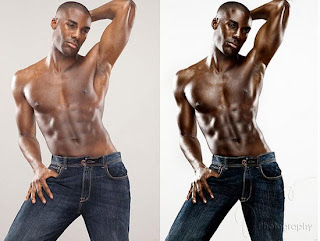
1.Refresh any old picture to new one.You are developing any old picture to new one.


2. We can convert a black and white photo into color with the help of Photoshop. We can convert to any type of colors in this software.And also convert a color photo to black and white.

3.We can create a new picture by mixing of two or others picture. Always we create and edit two or more photos to a new one.
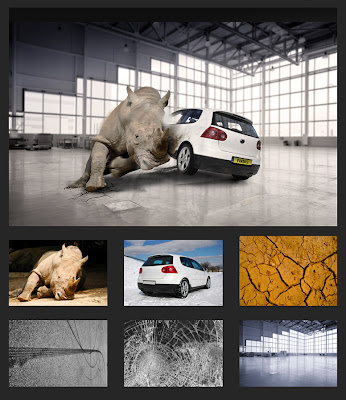

4.Photoshop also helps in video.It gives different effects.It gives different effects and transactions.We can also create different effect like water, Rainbow, Glow, Light effect etc. We connect two pages with the help of Photoshop and create our own web designing.


5.We can create any size of picture . Many photo studio also worked in this software. Because this software is working so simply and fast. Please see in this picture and learn about passport, Stamp, and all other size of pictures.


Sunday, 7 October 2012

What is Photoshop?

Photoshop is an editing software is a software comes under multimedia course.From the help of Photoshop we can edit any size of picture, resize an image, create difference effect.It was published is almost all languages. except-Bengali, Hindi or other not promotional languages. Adobe Photoshop company was situated in northern California.We can easily handle this Photoshop software. But before we are using this software we will known of the different type of system here.We can easily open this software in different type of step.
1st step: Click the mouse over the Photoshop icon ->double click on   the icon-> and then Photoshop software will be open.
2nd step: Go to start menu bar->Programs-> Select the Photoshop file-> and next click to open.                                  
3rd step: Click to start menu and open the "Run" box->and just writing in this software name->then click to        OK button and simply open our Photoshop software.
The Photoshop is the best and genius software of photo editing program.you are always happy to use in this software.
The short from of Photoshop is=Psd which means Photoshop Document.

Friday, 28 September 2012

How to Install Adobe Photoshop with photo tutorial

1) At first you are going to open a Photoshop software from our computer,drive or other flash drive. And click this icon like this-------------------------------------------------
Learn more
2) After a click open a new Photoshop installation box. This box name is Adobe Photoshop cs and Image ready cs setup box. And next you are going to click below the next option button .
3) And next select the "license agreement language selection box" open . There was 12 type of language is here. After you are always select "US English" language and then click the next button.

4) Next box is software license agreement box. And there a adobe company's software uses agreement passage is highlighted. Then you are read this agreement so carefully and click the "accept" button below.


5) After click this software license agreement box, and now open a customer information box open.

There was a short form fill up here. No problem I was always help you.
There was a two type of product registered type. One business purpose and other "Individual only" . When i click "A business" button then a small mistake here. Because the Adobe premium company will be charged a some of money. Because you are use this software a business purpose.
and next write down the title box below.
next write your name,middle name, surname below the box. whenever you have a company please write down your company name below. Or write down this field "self" only.
And then put down adobe Photoshop serial number. And click the next button below.


6) And then open a small "registration installation box below" . There was your previous form fill
up information is show below. And Adobe company to say " is this registration is correct ?If your registration is correct then you click "Yes" button below. Otherwise "No".


7) And then you are going to click the last step "choose destination Location" Box. Select the drive and also have a folder where setup will install files. To install to this auto setup folder, to click next, To install to different folder, Click browse and select another folder and then press next button.


8) after a box open and this box name " File Association". There was a different type of photo description here. Here you will to select or reselect this description. Select the file types i would like Photoshop or image ready to open and specify which application for each type. You are always select the default button. And press next.

9) when you are going to click the next button then open current information button. And press next to setup the software.
10) And next adobe Photoshop running to install . 


11)After some time the Photoshop install successful. And a activation box open .Then you are click to next button to internet activation or other activation service is here.
 12) After all when our install is complete and click the "Finish" Button below. And you are going to successfully install the Photoshop software .


Blogger news

Flag Counter
AutoSurf Traffic Exchange: Powerful Results with SEO tips | 10KHits - 10KHits provides quality traffic hits to your personal or business websites.